 The Plugin Audit: How to Verify the Integrity of GPL Files
Every WordPress site owner has been there — you find a premium plugin being offered for free somewhere on the internet, labeled “GPL Licensed” or “100% Original Files.” Maybe it’s on a nulled site, a Telegram group, or even a well-designed marketplace that looks legitimate. The price is zero. The temptation is real.
But here’s the question that separates cautious developers from reckless ones: How do you actually verify that a GPL plugin file is what it claims to be?
GPL (General Public License) gives you the legal right to run, study, share, and modify software. For WordPress plugins, this means developers can legally redistribute the code. But “legal to redistribute” does not mean “safe to install.” Malicious actors exploit this nuance constantly — they take a legitimate GPL plugin, inject backdoors, cryptomining scripts, or SEO spam code into it, and then distribute it as “free GPL.” Your site becomes the victim.
This guide walks you through a systematic plugin audit — a proper integrity check you should run on every GPL file before it touches a live server.
Why GPL Files Are a High-Risk Category
Most security discussions focus on “nulled plugins” — pirated premium files with license checks removed. But even plugins that are technically, legally GPL-redistributed can carry risks if the source is unverified.
The problem is structural. Because GPL allows anyone to fork and redistribute, the plugin ecosystem is enormous and decentralized. No single authority validates every distribution. WordPress.org does a solid job vetting plugins in its official repository, but thousands of GPL plugins live outside it — on developer GitHub repos, third-party marketplaces, and direct vendor websites. When you pull from any of these sources without verification, you’re trusting an unverified chain of custody.
The three most common integrity threats in GPL files:
Injected Malware — Extra PHP code added to plugin files that creates backdoors, steals admin credentials, or redirects traffic.
SEO Spam Injection — Hidden links or cloaked content inserted into plugin output to boost spammy sites at your domain’s expense.
Obfuscated Code — Legitimate-looking base64_decode or eval() chains that execute hidden payloads only after installation.
Running a plugin audit catches all three categories before they cause damage.
Step 1: Always Start With the Official Source
Before any technical verification, your first filter is the sourcing discipline. For any GPL plugin:
- WordPress.org Plugins Repo — The safest source for free plugins. All submissions go through manual and automated review.
- Official Developer Website — Most premium GPL plugins (like WooCommerce, ACF, etc.) sell directly and distribute clean files.
- Developer’s GitHub — Acceptable for open-source GPL projects where commit history is visible.
If a plugin file came from anywhere else — even a “trusted” private group — treat it as unverified until proven otherwise.
A useful habit: before installing an unfamiliar plugin, search for similar plugin names on the market. Copycats frequently clone popular plugins with near-identical branding and inject malicious code. Using a tool that shows you how many similar names exist can quickly reveal if a plugin name is suspiciously close to an established product — which is often a red flag worth investigating before you proceed.
Step 2: Check File Hashes Against Official Releases
Hash verification is the most reliable technical integrity check available. A file’s hash (MD5, SHA-1, or SHA-256) is a unique fingerprint. If even one byte of the file was modified — a single character changed in a PHP file — the hash changes completely.
How to do it:
- Download the plugin from the official, trusted source
- Calculate the hash:
sha256sum plugin-name.zip(Linux/Mac) or use CertUtil on Windows - Compare it to the hash published by the developer on their release page or GitHub
Many plugin developers don’t publish hashes prominently, but most major ones do on GitHub under “Releases.” If the developer publishes no hash at all, you’re relying on HTTPS delivery integrity — which is better than nothing, but not a full guarantee.
For WordPress.org plugins specifically, you can cross-reference using the WordPress SVN repository. Every revision is tracked, so you can pull the exact SVN revision and compare against your downloaded ZIP.
Step 3: Scan for Obfuscated and Suspicious Code
Hash verification tells you if files match the official release. But what if the official release itself contains questionable code, or you’re working with a plugin that has no published hash? This is where code-level scanning comes in.
Tools to use:
Plugin Detective (WordPress plugin) — Scans installed plugins for known malware signatures.
MalCare or Wordfence — Both offer file scanning that flags suspicious code patterns, including eval(), base64_decode chains, and hidden iframe injections.
Manual grep scan — Run this from your server or local environment after extracting the ZIP:
grep -r "eval(base64_decode" /path/to/plugin/
grep -r "gzinflate" /path/to/plugin/
grep -r "str_rot13" /path/to/plugin/
These functions aren’t automatically malicious — some plugins use them for legitimate purposes — but any result here warrants a closer look at the surrounding code.
PHPCS with security ruleset — PHP CodeSniffer with the WordPress Coding Standards ruleset will flag risky function calls, direct database queries without sanitization, and other code quality issues that often correlate with tampered files.
Step 4: Diff Against a Known-Clean Version
If you’re auditing a plugin update or checking a file that might have been modified, diffing it against a clean reference copy is invaluable.
diff -rq clean-plugin/ suspicious-plugin/This outputs every file difference between two directories. Run it between your downloaded file and the official WordPress SVN checkout, or between your current installation and a freshly downloaded copy from the official source.
On Windows, tools like WinMerge provide a visual diff interface that makes this even easier.
Any difference in a core plugin PHP file that isn’t in the changelog is a serious finding.
Step 5: Verify Plugin Author and Update History
Integrity isn’t just about the files — it’s about the chain of custody over time. Do a quick author verification check:
- Does the plugin have a consistent developer identity? Check WordPress.org profile, GitHub account, and official website.
- When was it last updated? Abandoned plugins (no update in 2+ years) are higher risk because known vulnerabilities may be unpatched.
- Does the changelog match what’s in the files? A “minor bug fix” update that changed 50 PHP files is suspicious.
For plugins you’re building yourself or whitelabeling, having a clear brand and development identity also matters — both for trust and for search visibility. When developers launch plugin-based products, they often start by establishing their brand at the naming phase, sometimes using an AI-powered naming tool to ensure the plugin or product name is distinctive before it goes to market.
Step 6: Sandbox Installation Before Going Live
No matter how thorough your static analysis, some payloads only activate after installation. This is why a staging environment is non-negotiable for any unverified plugin.
Staging workflow:
- Clone your production site to a staging environment (most managed WordPress hosts offer one-click staging)
- Install the plugin on staging first
- Monitor server logs for unusual outbound connections:
tail -f /var/log/apache2/access.log - Run an outbound request monitor — tools like Little Snitch (Mac) or tcpdump on the server will show any unexpected external connections the plugin makes on activation
- Check for new files created in
wp-content/uploadsorwp-content/cache— common locations for dropper malware to place additional payloads
Only after 48-72 hours of clean staging behavior should you consider moving forward.
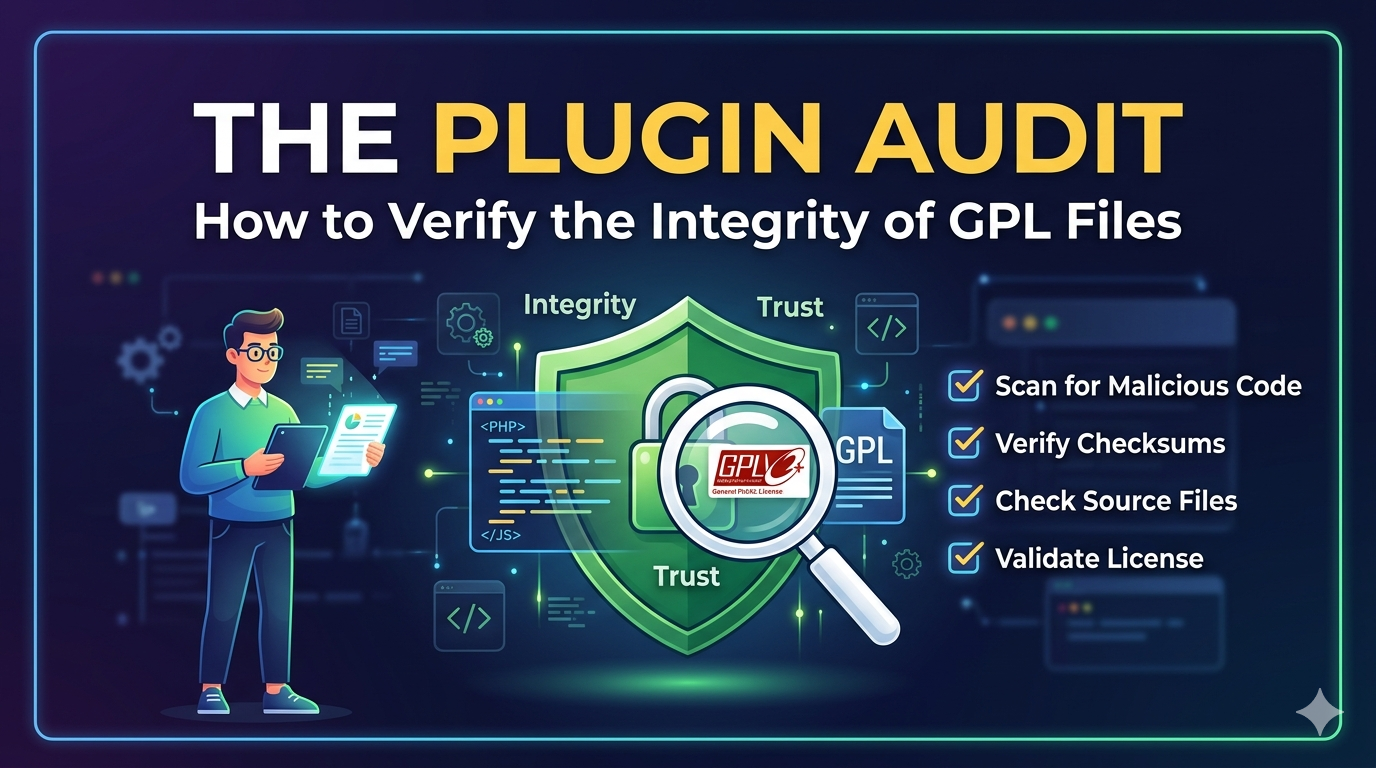
Step 7: Build a Plugin Audit Checklist Into Your Workflow
One-time audits are good. Systematic audits are better. Here’s a condensed checklist you can reuse:
- Plugin sourced from official channel (WordPress.org, developer site, or verified GitHub)
- Hash verified against published release (if available)
- Grep scan for obfuscated functions clean
- Diff against official version shows no unexpected changes
- Author identity verified and consistent
- Last updated within 12 months (or actively maintained)
- Staged installation shows no unusual outbound connections
- No unexpected new files created on activation
Make this checklist part of your standard plugin onboarding process — especially for client sites where the consequences of a compromise fall on your reputation.
Final Thoughts
GPL is a powerful license that democratizes access to quality software. It’s also a vector that malicious actors exploit because of how easy it is to redistribute files under its umbrella. The answer isn’t to avoid GPL plugins — it’s to verify them properly.
A plugin audit takes 20-30 minutes for an experienced developer. Compare that to the hours (or days) of recovery work after a site compromise, not to mention the reputational damage to your clients. The ROI on good verification habits is enormous.
Treat every unverified GPL file as potentially hostile until your audit says otherwise. Your sites — and your clients — will thank you for it.